Quick start for managers
Write and publish a first policy, say who has to read it and see who has. About twenty minutes.
By the end of this you will have written a short policy, chosen who has to read it, published it and seen who has read it. Allow about twenty minutes. You need the manager or administrator role.
Who can do this: Managers and administrators.
1. Create the policy #
- Go to Policies and press Add a policy.
- Type a title. If you use reference codes, type one (for example POL-012). Press Create policy.
You should see: the policy's edit page, with the message "Policy created".
 (opens a larger view)
2. Build its sections #
A policy is built from numbered parts. The quickest way to start is to list them all at once.
- On the edit page, find Add several at once.
- Type one title per line. Start a line with
-to put it inside the line above.Example
Purpose
Who this applies to
- Staff
- Volunteers
What we do
- Before a visit
- During a visit
- Press Add them.
You should see: an outline numbered 1, 2, 2.1, 2.2, 3, 3.1, 3.2.
 (opens a larger view)
More about structure: Building the sections of a policy.
3. Write each part #
- Press Edit next to a part.
- Write its text in the box. Use the buttons above it for bold, lists, links and pictures.
- Press Save. You return to the outline.
 (opens a larger view)
More: Writing the text of a part and Pictures and links.
4. Choose who has to read it #
- Scroll to Who has to read it.
- Tick Everyone in the organisation, or leave it unticked and choose teams, job titles or people.
- Press Save who has to read it.
 (opens a larger view)
More: Choosing who has to read a policy.
5. Publish #
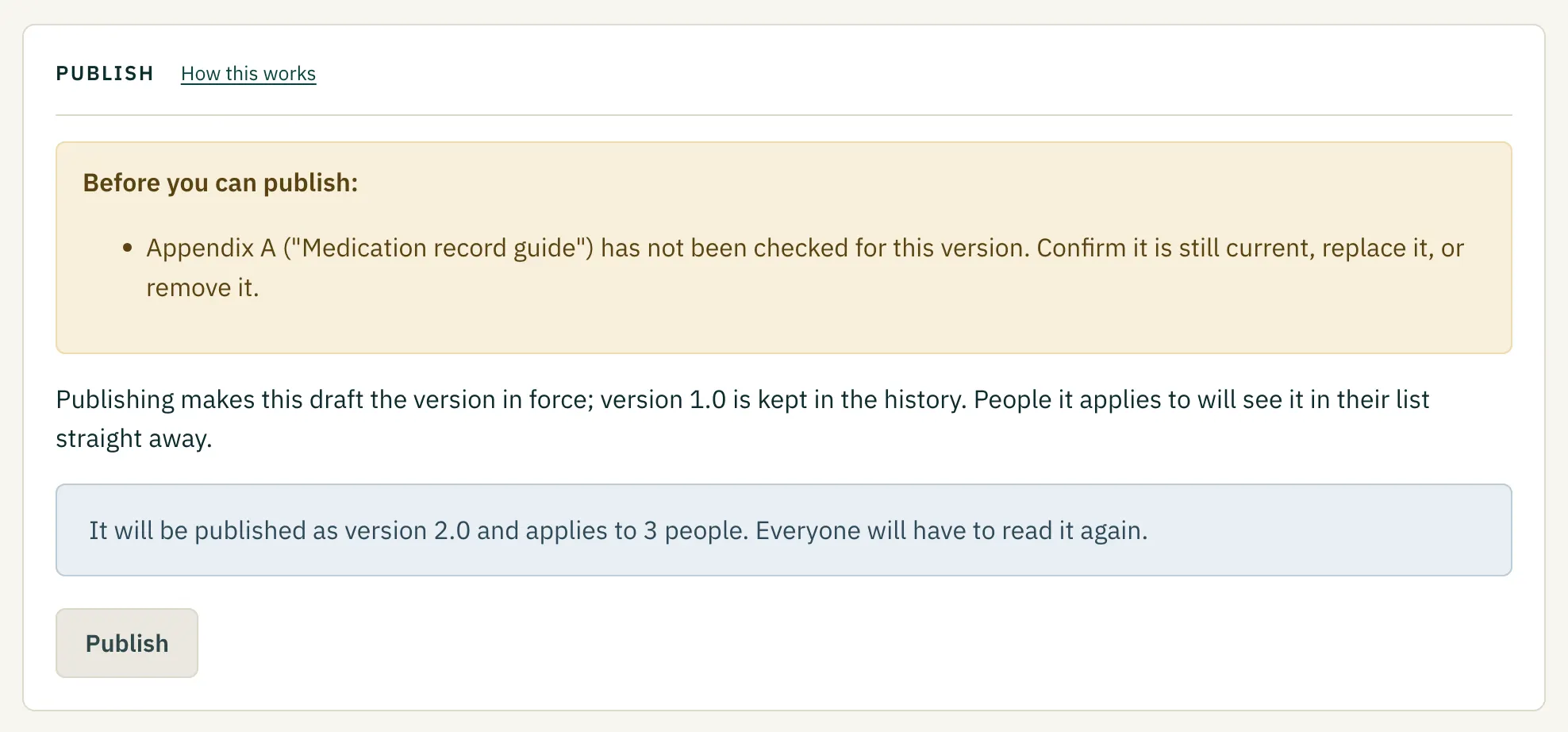
- Scroll to Publish. If something is missing, a warning box lists exactly what, and the button is greyed out.
- Press Publish and confirm.
You should see: "Published as version 1.0". The people you chose now have it on their list.
 (opens a larger view)
More: Publishing a policy.
6. See who has read it #
Open Compliance. Each policy shows how many of the people it applies to have read it. Press a policy's title for the names, a reminder button, and a printable record.
 (opens a larger view)
More: Following up: who has read it.
What next #
- Forms and appendices: Adding appendices, forms and templates.
- Changing a published policy: Changing a policy that is already published.
- Keeping policies reviewed: Keeping policies reviewed.
Is something wrong, unclear or missing on this page? Tell us what is wrong or missing on this page. We read every message and fix what we get wrong.