Publishing a policy
What has to be true before you can publish, what happens when you do, and how to preview first.
Publishing makes a draft the version in force. From that moment the people it applies to are asked to read it.
Who can do this: Managers and administrators.
What has to be true first #
The Publish panel on the edit page checks everything and lists anything missing. While anything is listed, the button is greyed out.
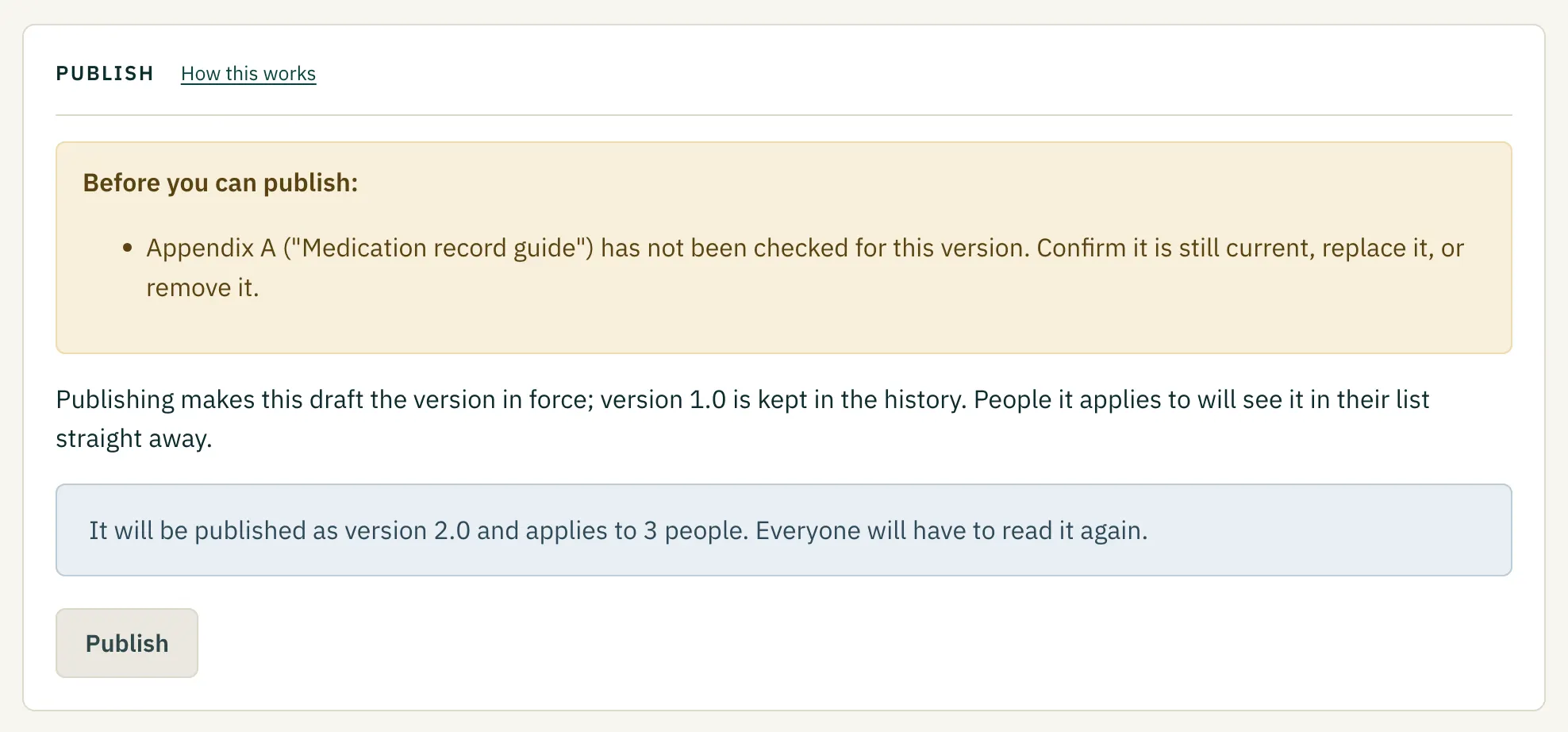 (opens a larger view)
| It says | What to do |
|---|---|
| Add the sections of the policy, or attach the original PDF. | Build the outline (Building the sections of a policy) or attach a PDF under This version. |
| Section 3 needs a title. | Give every top-level section a title. |
| Item 1.2.1 is empty. Add text or delete it. | Write something in the part or delete it. |
| Appendix A ("…") has not been checked for this version. | Press Still current, Edit or replace or Remove. See Adding appendices, forms and templates. |
| A pass mark is set but there are no questions. | Add questions or clear the pass mark. See Adding questions to check understanding. |
| Choose who has to read it. | Save an audience. This is rare, because a new policy starts with everyone. |
Preview first #
Press Preview the draft at the top of the edit page to see the draft exactly as readers will see it, with numbers, links and appendices. Only managers can see a draft.
Publish #
- Check About this policy (title, reference, category, review period) and This version (the What changed in this version note). Press Save these details or Save this version's details if you changed anything.
- Check Who has to read it.
- Press Publish and confirm "Publish this version now?".
You should see: the policy page, with "Published as version 1.0." (or the next version number).
What happens when you publish #
- The draft becomes the version in force. Its text, parts, appendices and questions are locked for good.
- The version is labelled. A first version is 1.0. Later labels are explained in Changing a policy that is already published.
- If there was an earlier version, it becomes "superseded". It is kept and can be opened from the history.
- The review date is set to today plus the policy's review period.
- People the policy applies to see it as To read on their home page straight away. No email is sent automatically. Use a reminder if you want one. See Following up: who has read it.
- If you chose "no re-read" for a small correction, people who read the previous version are counted as having read this one. See Changing a policy that is already published.
- The action is recorded in the activity log with your name.
You cannot unpublish #
A published version is evidence, so it can never be edited or removed. If you published something wrong, start a new version, correct it and publish that. If a policy should stop being used entirely, archive it. See Archiving, restoring and deleting.
Is something wrong, unclear or missing on this page? Tell us what is wrong or missing on this page. We read every message and fix what we get wrong.